 OGame
The script adds a menu entry, a quick action bar and a control panel to the OGame interface, plus a few conveniences in the game pages.
Menu entries
Two new entries appear in the left menu:
- oBot opens and closes the control panel; with the panel open it takes you back to the main page:
- Charts opens the attack and expedition charts (see the Charts section):
While an automation works, the menu links, the top bar and the planet list take its colour (magenta for the Project Orion anomalies and amber for the fleetsave, for example) and go back to normal when it ends.
Quick action bar
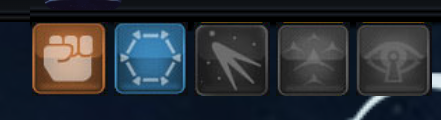
A row of buttons appears under the OGame logo on every game page. Hover over a button to read its name.
Status bar
At the bottom left, slightly apart from the game and with its own look, a bar says what the bot is doing now (for example an expedition or a planet's queue), what it will do next and when, and the last line of the Log. The ❚❚ button pauses the bot in all tabs, like «Disable the bot», and asks for a second click to confirm; ▶ starts it again. The dot on the left shrinks the bar to a point, a click on the text opens the Log. While the control panel is open the bar hides.

- Activate / Disable the bot: pauses or resumes the bot and reloads the page. Since 9.3.8 the pause applies to all tabs and lasts until you resume it: no automatic page changes and no background actions (resupplies, ship rebuilding, anomalies), so you can play by hand. Pausing asks you to confirm (resuming does not). While the bot is paused the other buttons are greyed out.
- Stop all actions: clears the missions the bot has in progress (attacks, expeditions, transports, fleetsave). To stop the bot straight away during an attack, press this first and then the pause button.
- Start expeditions: sends the expeditions right away with the options of the Expedition menu.
- Optimized attacks: spies and attacks the coordinates of the optimised attack list (Attacks menu, Lists).
- Find inactive targets: starts a round of espionage and attacks in the zone set in the Attacks menu.
Control panel
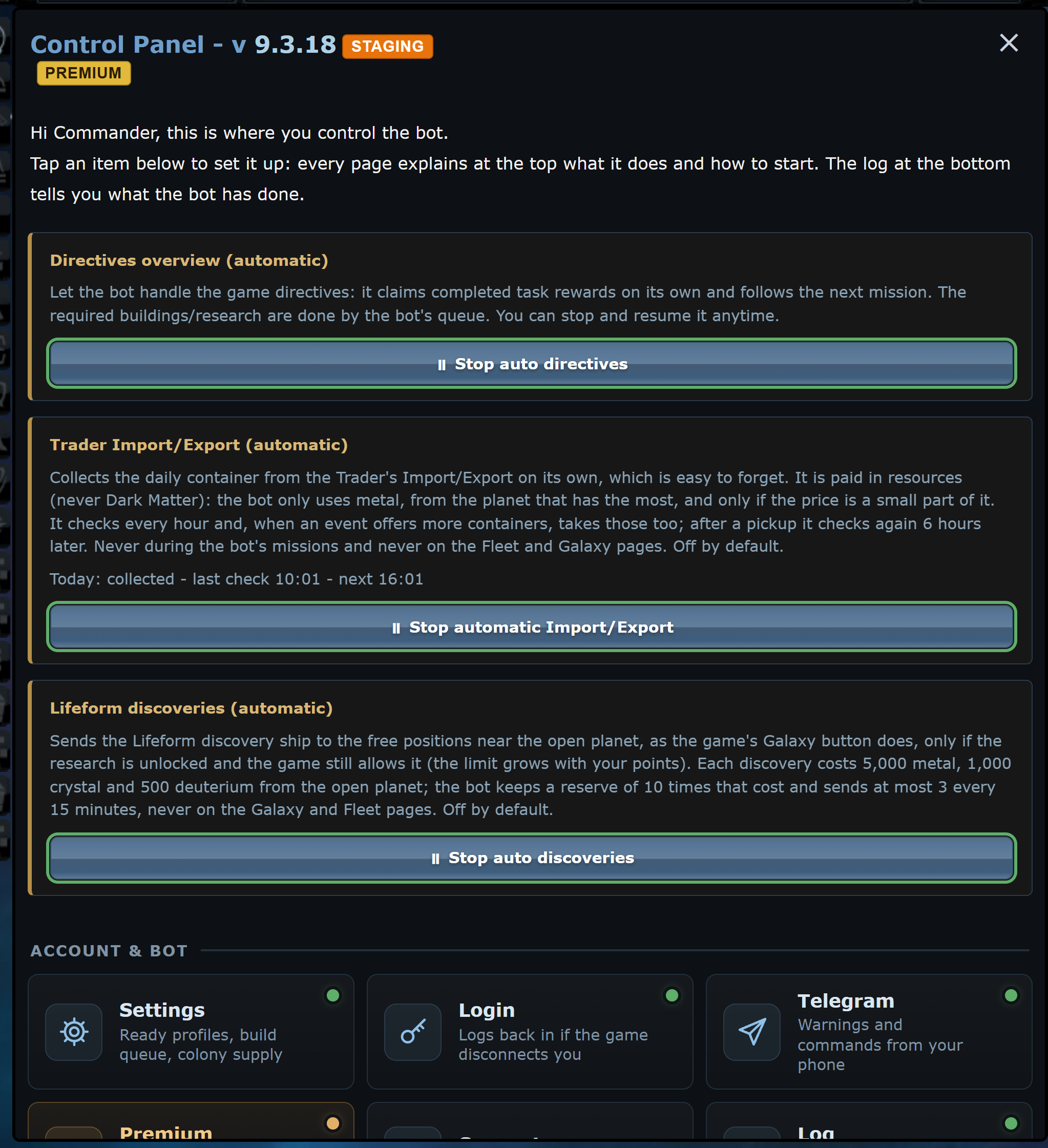
Clicking the oBot entry opens the control panel on its main page. The menus are tiles in two groups, Account & bot and Fleet & missions; a green dot means the feature is on. At the top you see the bot version and the premium expiry; STAGING appears next to the version when you use a trial version not yet published and PREMIUM when premium is on. Click the version to read what is new in it and in the previous ones. The X closes the panel. If the panel is taller than the window, it scrolls.
- Red warnings: remind you what is missing, for example research at zero or Telegram not linked.
- First steps: the to-do list to get going. It disappears by itself once at least one module is on and the bot knows your research.
- Directives, Import/Export and discoveries: three rows with a switch each, for the automatic functions of the Overview (see below).
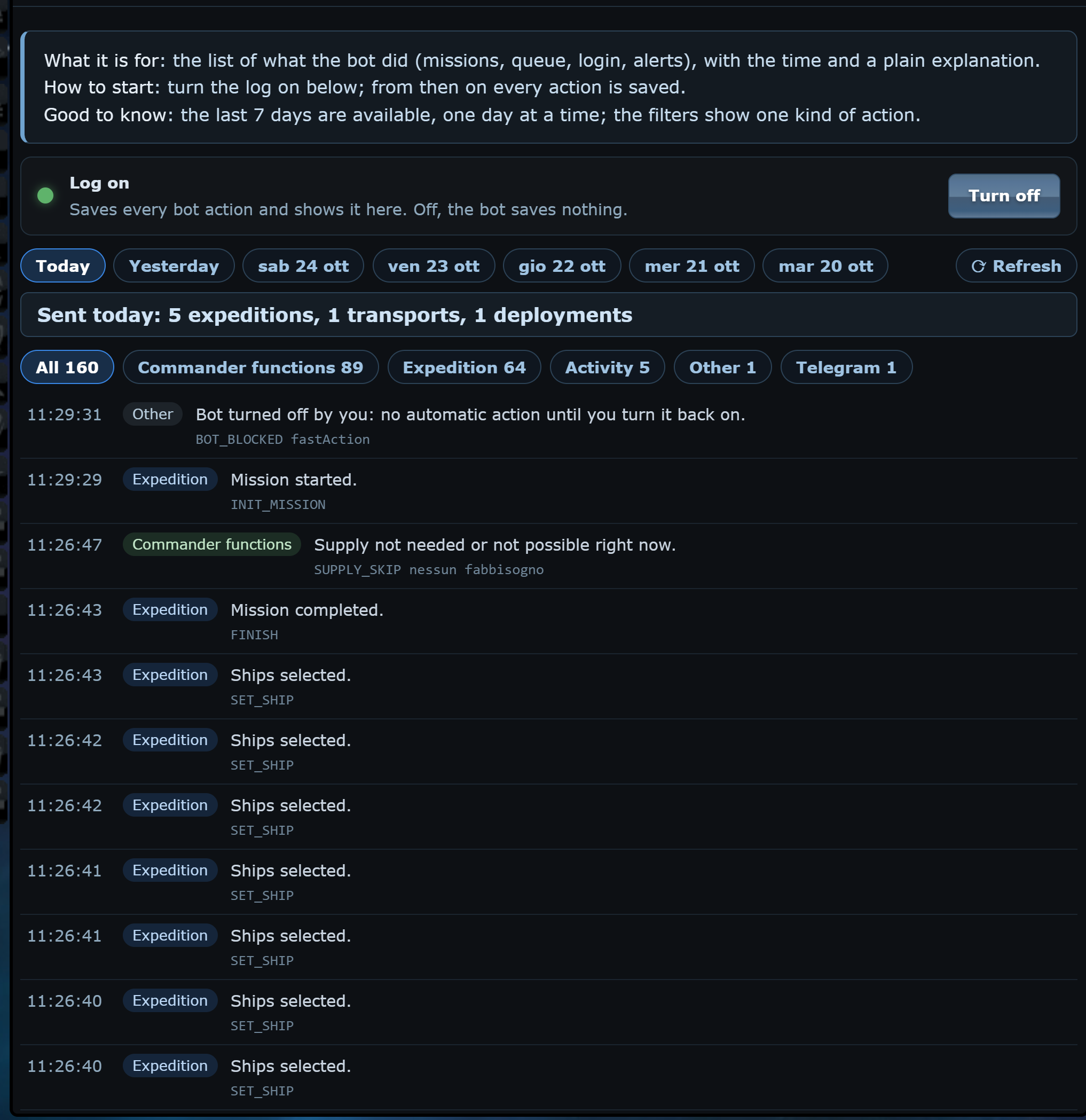
- Log: the Log tile opens the page with the bot's actions, one day at a time (last 7): time, kind and explanation of each row, filters by kind and the switch that turns saving on. With many rows it shows 400 and a button to see them all; if the oBot server does not answer it says so, and Refresh tries again. At the top a row says how many fleets left today from this browser, by mission type, counting the ones you send yourself too.
The browser tab title shows the time to the next reload and the universe, for example “0:03:53 OGame Singularity”. With AntiGameReborn the AntiGame title stays.
Panel menus
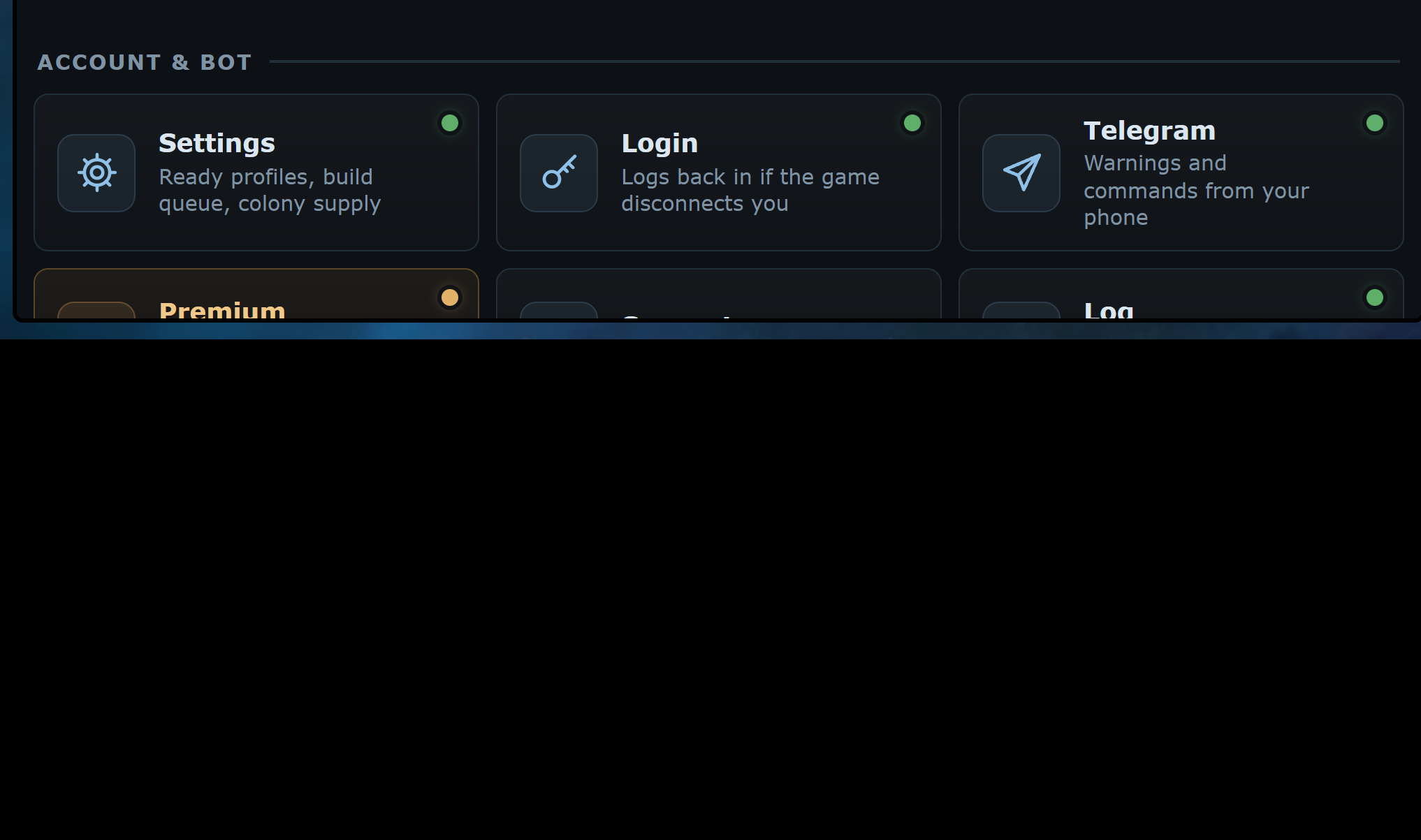
Each tile opens a menu. At the top there is ← Control Panel to go back to the main page, with a User manual link to the page that explains it; the X closes the panel. Every menu has the same structure:
- Intro box: what the menu does, how to start, what to know before turning it on.
- Quick setup (Attacks and Expedition): ready-made profiles that fill in the options. They do not save by themselves: check the values, then save.
- Boxed sections with an explanation at the top, and a line under every option saying what it does.
- Change settings at the bottom: saves the menu. Without it, changes do not apply.
Premium menus
Automatic directives

The Directives overview row, with its switch on, makes the bot follow the game directives: it claims the rewards of completed tasks one at a time, in every chapter and with the end-of-chapter prize too, and moves on to the next mission. The buildings and research they require are done by the bot queue (Empire card, Build queue section). You can turn it off and on again at any time.
Below there are two more rows of the same kind, off at the start. Each row has an icon, a status line (On, Off or, for Import/Export, whether today’s container was collected and when it checks again) and the i that opens the full explanation:
- Lifeform discoveries: when the Lifeform research is unlocked and the game still allows discoveries (the limit grows with your points), the bot sends the reconnaissance ship to free positions near the open planet, like the Discoveries button in the Galaxy. Each discovery costs 5,000 metal, 1,000 crystal and 500 deuterium. It sends at most 3 every 15 minutes, keeps a reserve of resources and does not repeat the same position for 48 hours.
- Trader Import/Export: collects the Trader’s daily container that many forget; the panel shows whether it was collected today and when it checks again. It pays in resources, never in Dark Matter: only metal, from the planet that has the most, and only if the price is a small part of it. It checks every hour, takes every offer when an event has several, and checks again 6 hours after a pickup. Never during the bot’s missions and never on the Fleet and Galaxy pages.
Galaxy and messages
- Coloured rows: in the galaxy, rows are coloured by player status: inactive, on vacation, strong players, newbies.
- Keyboard: in the galaxy Q and E move to the previous and next system, A and D to the previous and next galaxy.
- Planets and moons: click a player's name and a box with all their planets and moons appears on the left, under the menu: coordinates to open the galaxy, name and moon to send the fleet, the home planet in light blue. It stays open when you change page, until you close it with the X.
- Espionage reports: above the messages there is a table like the AntiGame one, with compact rows, the player with activity and honour, five buttons (delete, detail, galaxy, re-spy, attack; the A is red if the target is already under attack) and a summary at the bottom. The buttons above the table clean up: espionage alerts, small reports, defences too strong, duplicates, targets already attacked, all. The re-spy button starts from a planet or moon that actually has probes. With AntiGame or OGLight you see their table and their planets box.
- Favourites: an attack or espionage report marked as favourite is neither processed nor deleted by the bot.
Video
Support and requests
From the Support tile of the panel you write to the oBot support team and read the answer in the game, without email: a question, a bug or a suggestion.
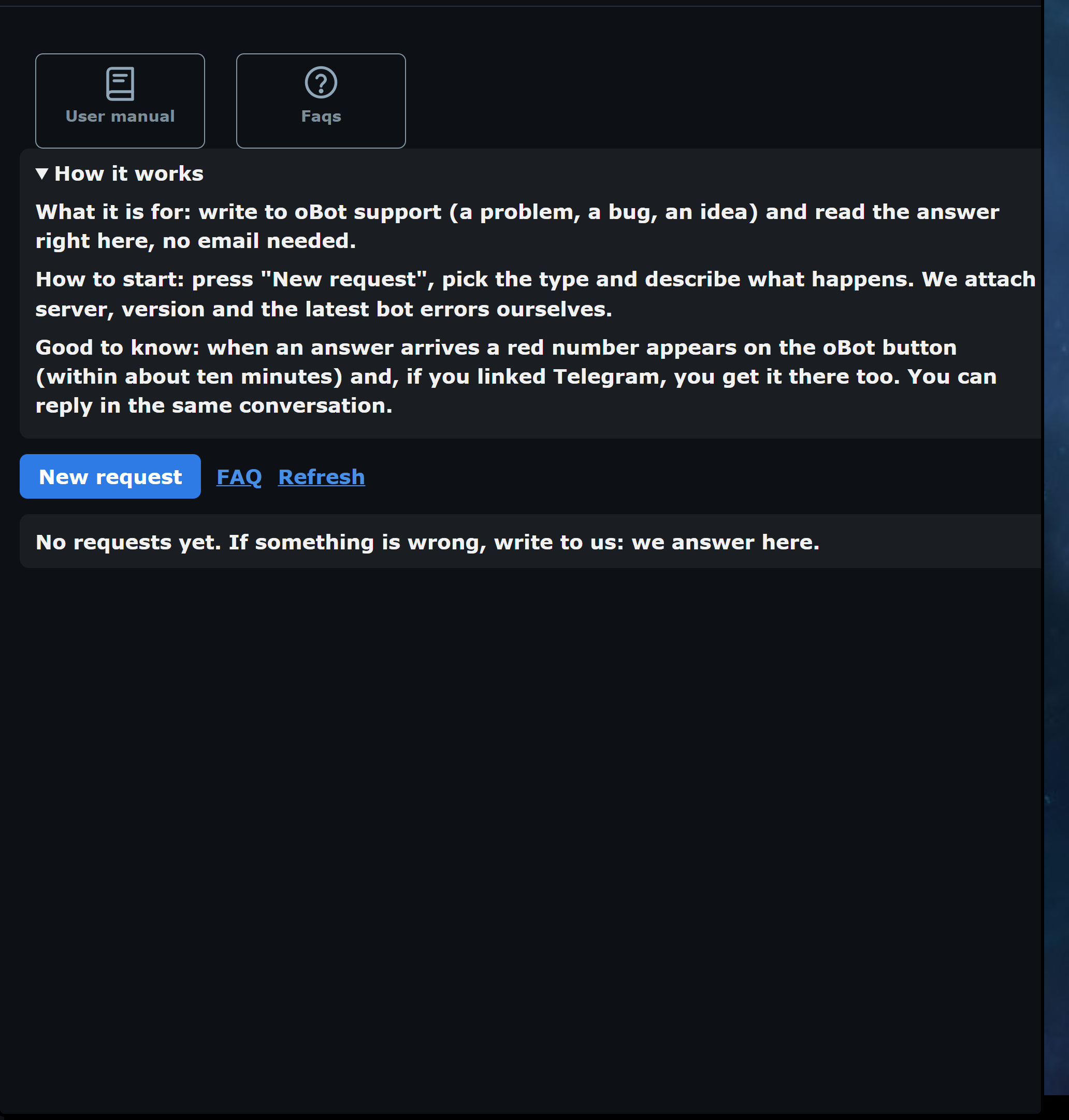
- Press New request, choose the type (Support, Bug or Idea) and describe what happens.
- Send it. Server, bot version and the latest errors are attached for you: no need to copy them.
- When the answer arrives a red number appears on the oBot button, usually within about ten minutes. With Telegram linked it arrives there too.
You can reply in the same conversation. An answered request closes by itself after 14 days without messages; if the problem comes back, open a new one.