 OGame
What you get
Commands reach the bot right away, in less than a second: the game tab stays connected to the oBot server. If the connection drops, the bot goes back to checking for commands every 10 seconds by itself, and a command never runs twice.
Commands reach the bot right away, in less than a second: the game tab stays connected to the oBot server. If the connection drops, the bot reconnects by itself and receives the command still waiting; a command never runs twice. Telegram commands and alerts work only with premium active, trial included.
Premium required
The Telegram menu appears in the panel only while premium is active, trial included. Notifications go through the oBot server: the service keys are not on your PC.
Linking Telegram
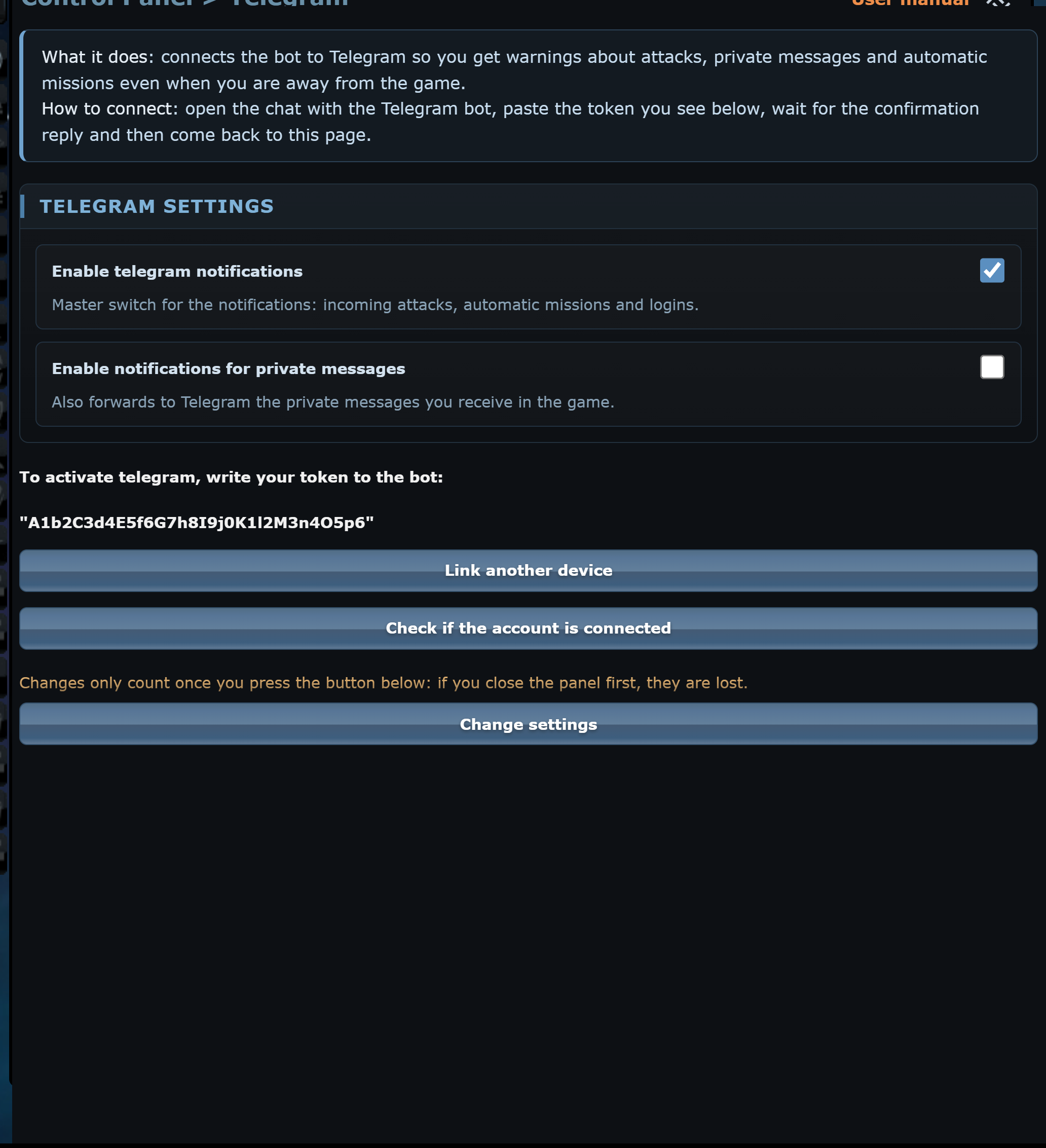
- Open the oBot panel and choose Telegram. Above the button you find your token in quotes: copy it without the quotes.
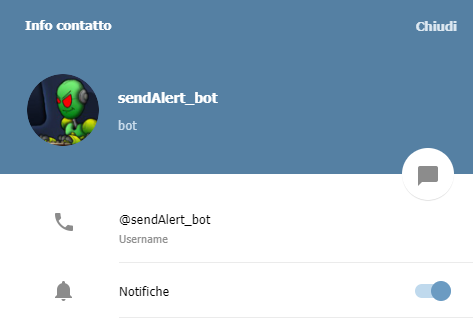
- Press Write to the bot and set up the chat: Telegram Web opens on the bot chat. If you use the Telegram app, look up the same bot there.
- If asked, press Start, then paste the token and send it as a message:
- The bot replies that the chat is linked and the OGame page shows "Chat set up successfully".
- Reload the OGame page and go back to the Telegram menu: now you see the notification options.
- Tick Enable telegram notifications and press Change settings.
- Press Check if the account is connected: you should get a test message.

Options
Enable telegram notifications
The master switch: alerts for incoming attacks, automatic missions and logins.
Enable notifications for private messages
Also forwards to Telegram the private messages you receive in the game.
Link another device
Opens the bot chat again to link another Telegram account, or the same one after reinstalling it. Send the token again.
Other notifications
They are turned on in the menus they belong to: Notify when automatic expeditions are sent in Expedition, Enable login alarm in Login. What is new in each version stays in the panel's News window: no update message on Telegram.
If it does not work
- Make sure you sent the token without quotes and without spaces.
- If the panel says "Account not connected", send the token again and wait for the confirmation on the OGame page before reloading it.
- An espionage alert only arrives if the bot sees the event while it is under way: if the page refresh happens after the probe has landed, the event is gone. More frequent auto-activity leaves fewer gaps.